Mic Merge Use several microphones as one, on Windows.
Want to use two microphones at once? Mic Merge merges your mics into one clear microphone, free of background noise, for Zoom, Teams, Discord, OBS or any other app.
Free · Windows 10 and 11 · No installer
How it works
Mic Merge combines your microphones live, the way a sound engineer would, and hands your apps one clean microphone.
Whoever is talking comes through
The mic of whoever is talking comes up and the others duck, like the automatic mixers in conference rooms and TV studios. So the sound stays clear instead of noisy and echoey, and the volume stays the same however many mics you add.
While one person talks
Desk micTalking
HeadsetDucked
Laptop micDucked
The mixSame level
Background noise removed
Each mic is cleaned of background noise, like a fan or a busy street, by AI that runs on your computer.
Voices evened out
Quiet and loud voices are evened out, so a soft voice isn't lost next to a loud one.
Loud moments never distort
A laugh or a shout is caught before it gets too loud, so it never crackles or distorts.
Auto-Align
Talk for a few seconds so every mic hears you, and Auto-Align lines the mics up in time, so none lags behind.
Runs in the tray
Minimize it and it keeps mixing from the tray. Turn on Start with Windows and it starts by itself, with your saved mics.
Nothing recorded or uploaded
The sound stays on your computer. Mic Merge mixes it live and never records it or sends it anywhere.
Set up in four steps
VB-Cable is installed once. After that, Mic Merge remembers your mics: open it and press Start.
- 1
Install VB-Cable
VB-Cable is a virtual audio cable from VB-Audio (donationware, free for personal use). Download it from VB-Audio's site and unzip it. Right-click
Get VB-CableVBCABLE_Setup_x64.exe, choose Run as administrator, and click Install Driver. Then restart the PC. - 2
Download Mic Merge
Download it and double-click it: there's nothing to install. If your browser asks, choose Keep. Windows SmartScreen may say "Windows protected your PC", because the app isn't signed: click More info, then Run anyway.
Download for Windowsmic-merge-windows-x64.exe · 5.6 MB - 3
Pick your mics, then press Start
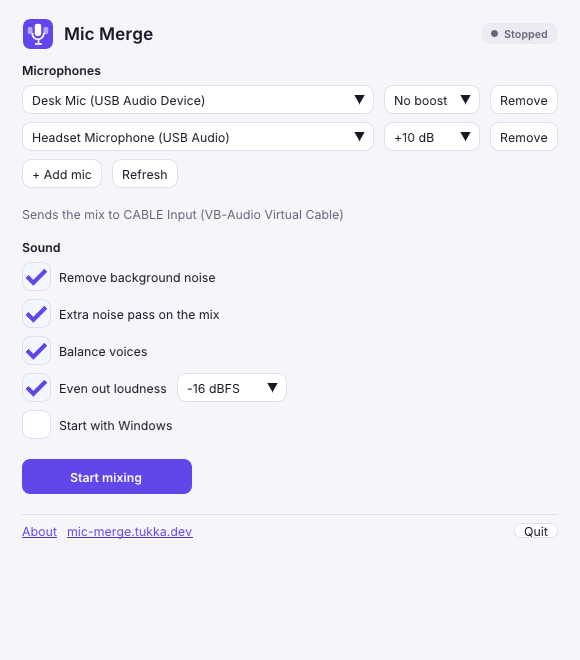
Choose a mic in each row, and click Add mic for more. Then press Start. The level meters show each mic and the mix.
- 4
Choose CABLE Output in your app
In Zoom, Teams, Discord, OBS or any other app, choose CABLE Output (VB-Audio Virtual Cable) as the microphone. Everyone on the call now hears every mic, mixed.
Who it's for
Anyone who needs multiple mics on Zoom, Teams, Discord, OBS or any other app, for a call, a stream or a recording.
Two people, one computer
A podcast, a stream or a call with two people sharing one PC, each with their own USB mic.
Families and small rooms
Video calls with a few cheap USB mics spread around the room, so everyone is heard, not just whoever sits closest.
Two mics at once
A desk mic and a headset mic live together, for anyone who wants to use two microphones at once.
Questions
Is Mic Merge free?
Yes. It's free, with no ads and no sign-up.
Why do I need VB-Cable?
Windows can't create a virtual microphone without a driver. VB-Cable is that driver, made by VB-Audio: Mic Merge plays the mix into it, and your apps hear it as a microphone called CABLE Output. It's donationware: free for personal use, and companies need VB-Audio's paid license.
Does it record or upload anything?
No. The sound stays on your computer: Mic Merge mixes it live and doesn't record it or send it anywhere. The app only counts launches, with a random ID, the platform and the build number; the privacy policy has the details.
Which mics work?
Any mic Windows sees: USB mics, headsets, a laptop's built-in mic, or a mic plugged into the 3.5 mm jack. You can mix different kinds.
Does it work on Windows 7 or 8?
No. Mic Merge runs on 64-bit Windows 10 and 11.